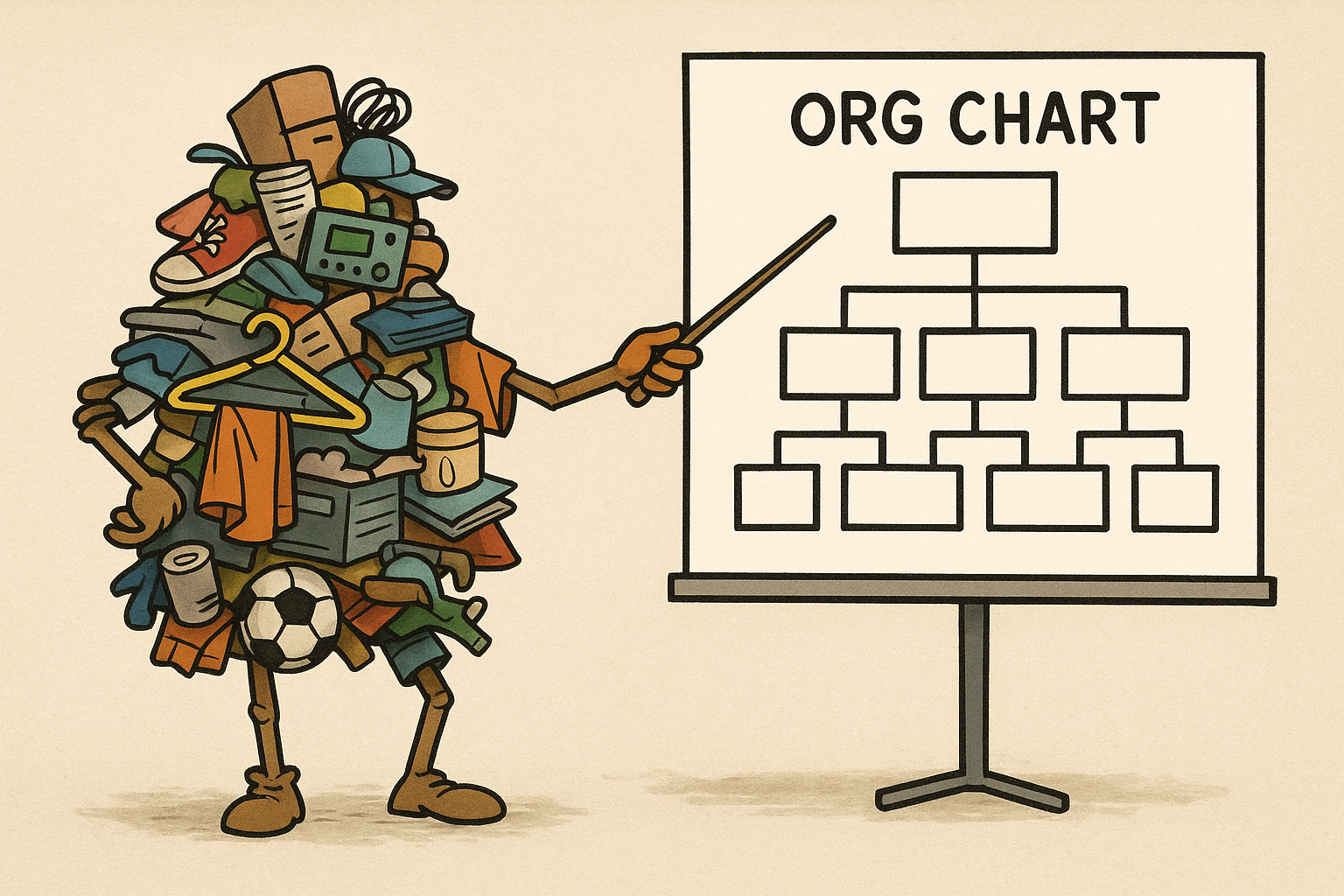
Who’s the Boss? Populating Org info in AD
Are your Outlook/Teams contact cards boring? Are they not a badge of honor for your users to showcase who reports to who and who has what job title?
Let’s look into how we can pump organizational data into our Active Directory via PowerShell. Follow along (or don’t. i don’t care. I’m not YOUR boss)
P.S. you can get this script here on my GitHub.
Let’s do the grueling work of preparing a .CSV file. Hopefully someone in your company can fill in the information because , if not, you’ll have to pump in the data for the entire organization. Pop quiz on Wednesday!
And remember the golden rule of data administration: Garbage In -> Garbage Out

After the grunt work is done, let’s play in PowerShell.
To start off, we’ll bring in the data from our .CSV, declare variables based off of the column headers, and start a foreach loop:
$Import = Import-Csv -Path "c:\temp\org.csv"
foreach ($User in $Import){

    #region Define Variables
    $Name = $User.Name
    $JobTitle = $User.JobTitle
    $Company = $User.Company
    $Mgr = $User.Manager
    If($Mgr -notlike $null){
        $Manager = get-aduser -Filter "Name -like '$Mgr'"
    } Else {
        $Manager = $null
    }
    #endregion
Now, the kicker here is that in order to populate the Manager field in AD, you need an AD object, not just a plaintext string. That is why we are doing the $Manager = get-aduser -Filter “Name -like ‘$Mgr'” piece. Essentially, this is combing through your AD, finding a match between the string entered in column D of your .CSV and a user in AD, then storing that AD object as a variable. We also follow it up with the “Manager equals null. If statement”, as this will account for executive level employees who may not have a manager. Otherwise, you’ll be assigning the previous foreach run’s $Mgr to an entry that may not have a $Mgr.
Moving on! Now, since we’re in a foreach loop, we are just going to run several Set-ADUser cmdlets with the appropriate flags. If you’re modifying this script to add additional data, don’t forget to use PowerShell ISE’s Intellisense feature to find the flags you need, or visit the get-help page on this cmdlet.
#region Apply to user
$adUser = Get-ADUser -Filter "Name -like '$Name'" -Properties DistinguishedName, Name, Title, Department, Company, Manager
If ($adUser) {
    If($JobTitle -notlike $null){
        write-host "Updating $($adUser.Name) : $($adUser.Title) to $JobTitle"
        Set-ADUser -Identity $adUser -title $JobTitle
    }
    If($Company -notlike $null){
        write-host "Updating $($adUser.Name) : $($adUser.Company) to $Company"
        Set-ADUser -Identity $adUser -Company $Company
    }
    If($Manager -notlike $null){
        $ManagerName = $Manager.Name
        write-host "Updating $($adUser.Name) : $ManagerName to $($Manager.Name)"
        Set-ADUser -Identity $adUser -Manager $Manager
    }

    } Else {
        Write-Warning "User $Name not found in AD."
    }
}
#endregion
And we’re done! Now every middle manager gets an ego boost seeing that they have direct reports, and HR is happy that they have a visual representation of the organization.
As always, remember:
This project is provided “as is” without any warranty of any kind, express or implied. Use it at your own risk. The authors and contributors are not responsible for any damage, data loss, or other issues that may arise from using this software. You are solely responsible for any actions taken based on this code.