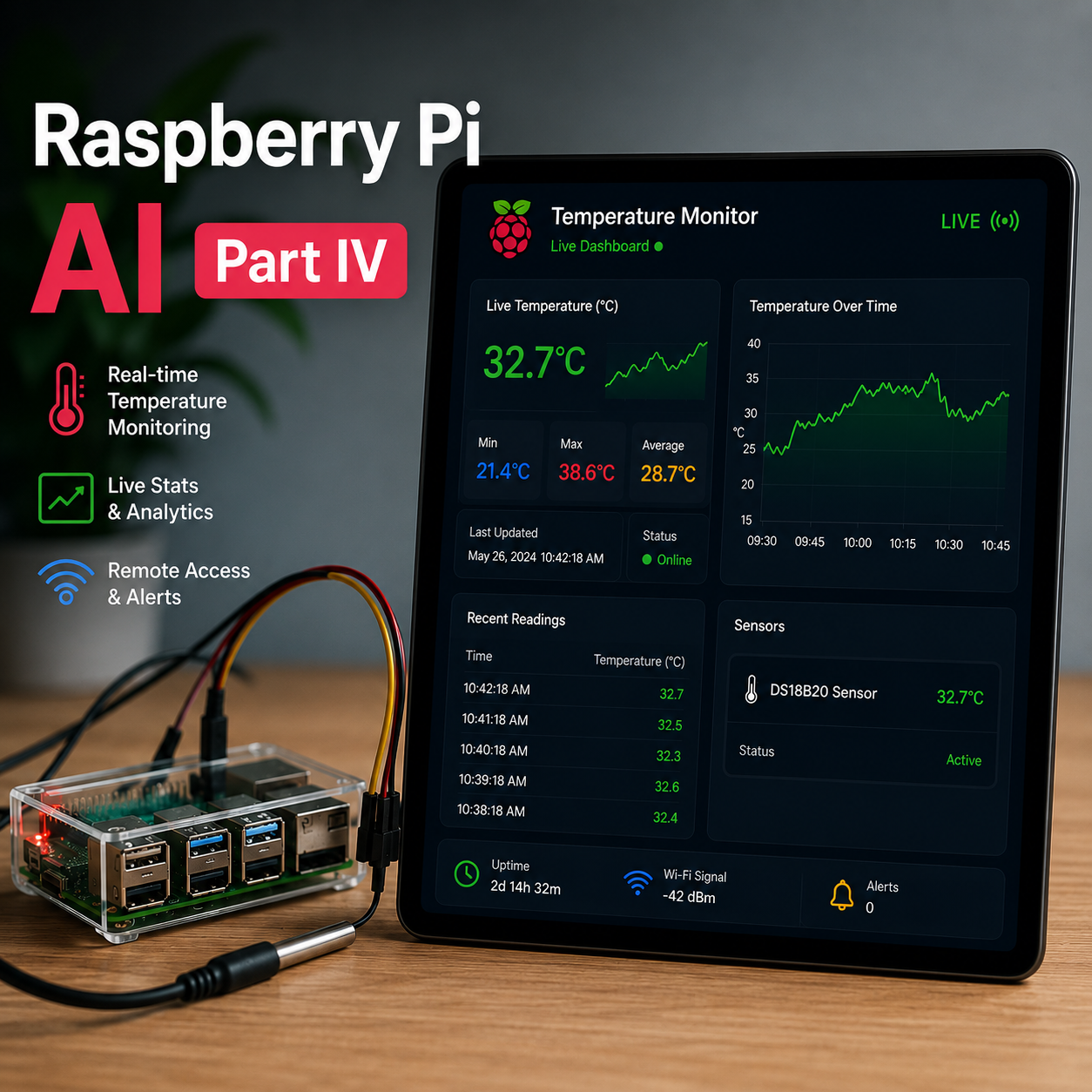
Raspberry Pi AI Part IV: Adding Dynamic Readings and Temperature Data
Ok, now we should have a dummy dashboard with a live camera feed and static system stats. Let’s spice things up with dynamic stats. It does no good if you’re constantly seeing “RAM 7.6%” until the next page refresh (if that even ever occurs).
We’re going to add a new function into app.py:
@app.route("/stats")
def stats():

    return {
        "cpu": psutil.cpu_percent(),
        "ram": psutil.virtual_memory().percent
    }
This is going to create JSON records for CPU and RAM counts.
Next, modify your index.html file with the following. This is going to replace the existing entries for CPU and RAM usages respectively:
<h3>CPU Usage</h3>
<p id="cpu">0%</p>

<h3>RAM Usage</h3>
<p id="ram">0%</p>
Let’s switch things up and go Full Stack dev mode. Let’s make a Javascript file in the /static folder wqith the following code:
async function updateStats() {

    console.log("Updating stats...")

    const response = await fetch("/stats")

    const data = await response.json()

    console.log(data)

    document.getElementById("cpu").innerText =
        data.cpu + "%"

    document.getElementById("ram").innerText =
        data.ram + "%"
}

setInterval(updateStats, 1000)

updateStats()
Then place the following towards the bottom of your index.html file before the body closer:
<script
src="{{ url_for('static', filename='app.js') }}">
</script>
Restart your Flask app (app.py) and relaunch your dashboard. You should now have a live reading of your Raspberry Pi’s stats.
When Hell Freezes Over
This next bit was a tricky one. I went gloves off. No hand holding. I wanted to add a reading for CPU temperature. I figured, since we’re already leveraging psutil, I figured it would be as simple as researching what the method is for temperature, it’s gotta’ be as easy as “psutil.temperature” or something, right? Wrong. I was close, it’s “psutil.sensors_temperature()”. We also need to be very specific because this piece pulls a range of temperature data.
Anyway, we need to update all of our files to include this new metric. Check it out:
app.py (within your @app.route(“/stats”) piece)
temps = psutil.sensors_temperature()
cpu_temp = temps['cpu_thermal'][0].current
Then in your stats function add this:
"temp":cpu_tempapp.js ( under your RAM reading)
document.getElementById("temp").innerText =
     data.temp + "0C"
index.html (make a new div)
<div class ="card bg-secondary mb-3">
     <div class = "card-body">
     <h3>Temperature</h3>
          <p id="temp">0C</p>
    </div>
</div>
Phew! Having fun yet? Now we should have our temperature reading of the Raspberry Pi, and all of our readings are live and dynamic.

What Can Go Wrong Will Go Wrong && Lessons Learned
Ugh, I feel like such a dummy. I created my javascript file in the TEMPLATES folder when it should’ve been in the STATIC folder in my repo! I finally figured that out after using Chrome’s dev tools and seeing a 404 for the /app.js file.
Syntax is also very important, duh! I’m just using nano to write my files, so I’m missing out on rich editor features like syntax checking. I’m going to switch to a Linux based one.
I fought for hours on color correction for the camera. I’m wearing an orange hoodie, and its displaying as purple. Its not worth the trouble right now. I’ll come back to it.